
Live interview help
Stay ready while someone watches. Answer in your own words.
Captions and a draft you can say in your own words.
The interview copilot is the live overlay you open beside a call on macOS or Windows. It captions the question as it is asked, then drafts a response from your resume for verbal, coding, system design, or project rounds. You speak the answer yourself. Switch surfaces without restarting the session.
Verbal
Behavioral and conversational rounds
Live Coding
Technical screens and algorithm rounds
System Design
Architecture and scaling discussions
Project
Take-home and local-repo walkthroughs
How it works
Prepare once. Get help in the live round.
URHIRED AI sits beside your meeting as a desktop overlay — not a plugin. You see captions and answers; screen share stays clean.
Load your context
Before the call, pick the role, attach your resume and the job description, and choose verbal, coding, system design, or project. Save the setup so every round in the loop starts ready.
Open beside the meeting
Join Zoom, Meet, or Teams as usual. Open URHIRED AI from the edge launcher, press Start interview, and read the question as it is asked — then a draft answer grounded in your material.
Switch when the round changes
Behavioral → coding → system design without restarting. Snip a problem from their pad, get an approach and code, or a diagram you can redraw while you talk. Type where they can see; the overlay stays off the share.
The hub
One pill, always within reach
The only thing on screen between sessions — click it to open the workspace, right-click for the quick menu, drag it anywhere along the edge.

No Dock icon, no taskbar button — the pill is the whole footprint.
Coding
Snip the problem. Keep coding in their editor.
Live coding: capture the prompt from CoderPad, HackerRank, or whatever they opened. Get an approach and working code — then type it where they can see.
Press Cmd/Ctrl+Alt+A, drag over the problem statement, and it is captured, attached, and sent in one action. Captured over a frozen frame, so your cursor never changes.
An approach in plain English, then working code, then the reasoning — in an order you can actually narrate while you type.
Time and space complexity come back with the solution, because that is the follow-up question every single time.
Set your programming language once in the interview setup and every solution comes back idiomatic to it — not translated from Python.
Switch the answer style to Hints and the copilot nudges you toward the solution rather than handing it over. Practice mode that actually teaches.
Cmd/Ctrl+Alt+2 jumps to coding help. Cmd/Ctrl+Alt+O copies text from the screen to your clipboard. Every shortcut is remappable.
Programming languages
18 Programming Languages
Choose Python, TypeScript, Java, and more in the interview setup — solutions come back idiomatic to that language across every round you run with the saved setup.
Compatibility
Works on every coding platform
URHIRED AI does not integrate with your coding environment — and that is exactly why it works everywhere. It is a desktop overlay that reads what is on your screen when you ask it to, so the platform underneath is irrelevant.
Competitors such as Final Round AI and LockedIn AI do not work in fullscreen platform modes, including Ropes and Feenyx. The URHIRED AI overlay is undetectable and floats on the fullscreen platform, so it keeps supporting those live sessions. You still speak or type every answer. Screen-share capture skips the overlay. Floating on the platform is not a guarantee against dedicated proctoring software.
- Works in full-screen mode
- No browser extension to install
- No plugin for the assessment platform to detect
- Excluded from your screen share while you work
- Works the same on a shared editor or a proctor-free take-home






System design
Bound the problem. Draw the system. Defend the tradeoffs.
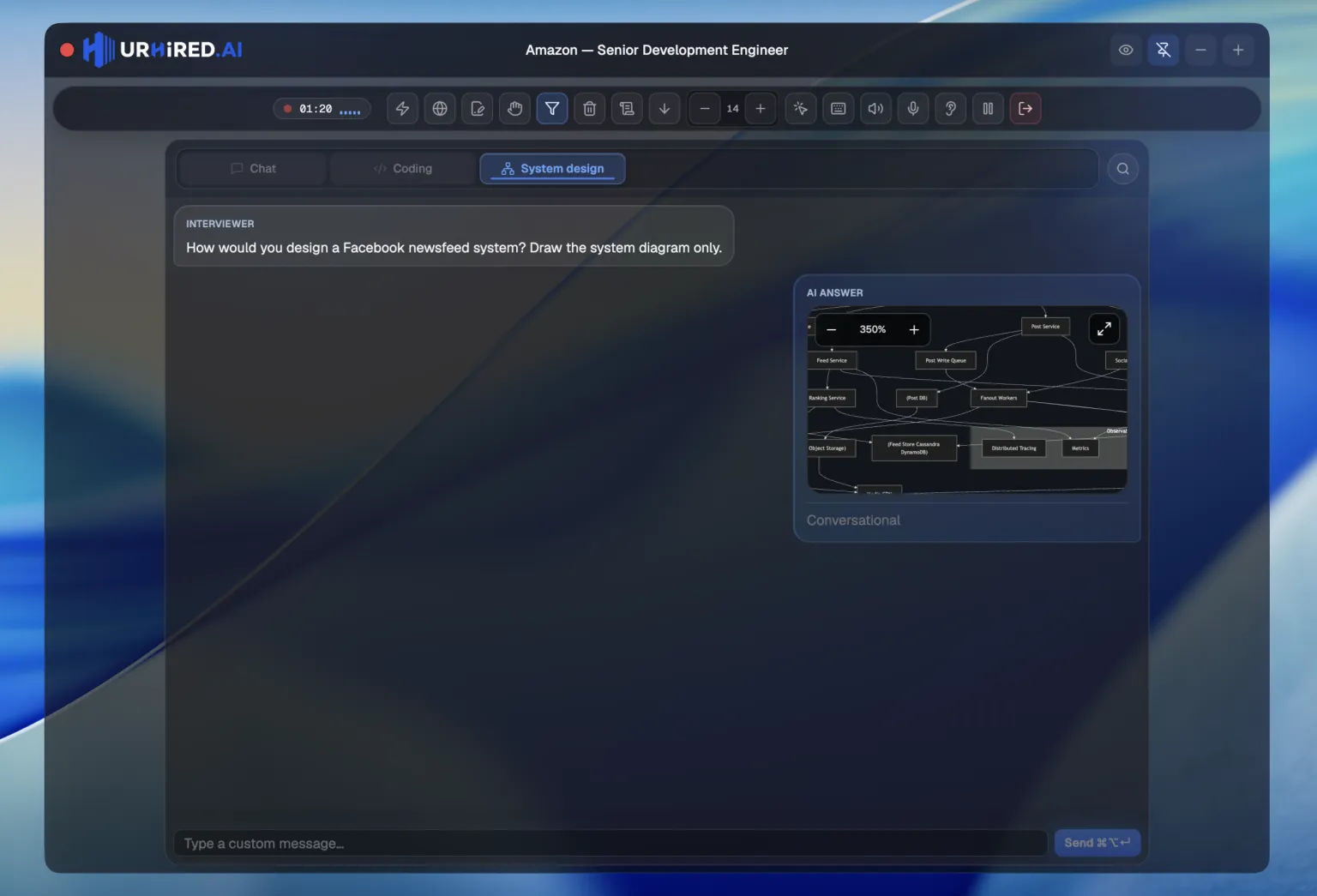
A live architecture conversation, not a wall of text. The diagram renders in the answer so you can redraw it in their tool and talk.
Overview
The shape of the solution in a short paragraph you can say out loud without translating it first.
Components
Every piece of the system, listed, so you can walk the interviewer through the architecture one box at a time.
Diagram
A rendered architecture diagram inside the answer itself. Not a description of a diagram — the diagram.
Tradeoffs
What the design gives up and why, so you already have an answer when they push on your choices.
Why it matters
System design rounds are whiteboard rounds
You are not being graded on whether you know what a load balancer is. You are being graded on whether you can lay out a system, explain the flow between its parts, and defend the parts you chose. That is a visual conversation.
- Diagram renders inline while the answer streams
- Components listed separately so you can narrate in order
- Tradeoffs surfaced before the interviewer asks for them
- Switch surfaces with ⌘⌥1–⌘⌥4 (by tab order) or ⌃⌘⇥ for next
Everything else
The parts that make it usable under pressure
A rolling caption of the interviewer's audio so you can read the question while it is still being asked. Append any line to your draft with one keystroke.
Attach your resume, the job description, and a personal profile. Answers come back grounded in your actual experience instead of generic advice.
Assign a reasoning model to system design and a fast one to verbal, once, in Settings. Same session, no restart.
Capture the screen, hide the window, click through, copy text, switch interview type, and more — all remappable in Settings → Hotkeys.
Compose a setup once — role, job description, interview types — save it, and reuse it for every round in the loop.
Conversational, Hints, Structured, STAR, and Explain. Switch mid-interview from the control bar as the round changes shape.
Compatibility
Works with every meeting tool
There is no plugin and no browser extension. URHIRED AI is a desktop overlay that sits beside whatever is on your screen — which means it works with the meeting app your interviewer picked, not the one we integrated with.
- Zoom, Google Meet, Microsoft Teams, Webex, Amazon Chime
- CoderPad, HackerRank, CodeSignal, LeetCode, Codility
- Excluded from your screen share
- macOS 13+ and Windows 10/11
Ready for the live round?
Create a free account, download the app, then run your first session — live help or a practice round.